





In this article we’ll explore SSO CISD — the single-sign-on system used by the Conroe Independent School District (CISD) — what it means, how you (as a student, parent, teacher or staff) can use it, and why it matters in today’s digital-education environment. We’ll cover how to log in, secure your account, common issues, best practices, plus an FAQ section.
What is SSO CISD?
Decoding the Acronym
- SSO stands for Single Sign-On, an authentication system where one set of login credentials grants access to multiple apps or services.
- CISD in this context refers to “Conroe Independent School District” in Texas.
- Therefore, SSO CISD means the SSO system implemented by Conroe ISD — a unified login solution for students, teachers, staff, and sometimes parents.
Why Conroe ISD Uses It
- According to Conroe ISD’s knowledge base, the system allows users to log in once and access many of the district’s applications — reducing the need to remember multiple usernames/passwords.
- The SSO platform is powered by ClassLink (a common SSO/portal solution for schools) which emphasises secure access and integration of many learning-apps.
- From a security and efficiency standpoint: It simplifies IT-management (fewer logins to maintain) and improves user-experience (faster access to resources).
Key Features of CISD’s SSO
Here are some of the main features you should know:
- Centralised login page (e.g., launchpad.classlink.com/conroeisd) for authorised users.
- Multi-Factor Authentication (MFA) options for added security (image method, mobile authenticator, SMS).
- Dashboard style interface – once logged in the user sees a suite of approved applications relevant to their role (student/teacher/parent) and can click from there.
- Regular password change / recovery policies: e.g., password expiration every 90 days.
How SSO CISD Works – A Step-by-Step User Guide
Initial Setup (First Time Login)
- Go to the official SSO portal: e.g., or the ClassLink LaunchPad for Conroe ISD.
- Enter your CISD-issued username and temporary password (often provided by your school or district).
- You’ll be prompted to change the temporary password. Set up your “Recovery” info (personal email, mobile, etc.).
- Choose your preferred MFA method:
- Image method (select a memorable image)
- Mobile authenticator app (e.g., Google Authenticator)
- SMS/text code (less recommended)
- Complete setup and you’ll be directed to your personalised dashboard.
Daily Access – What It Looks Like
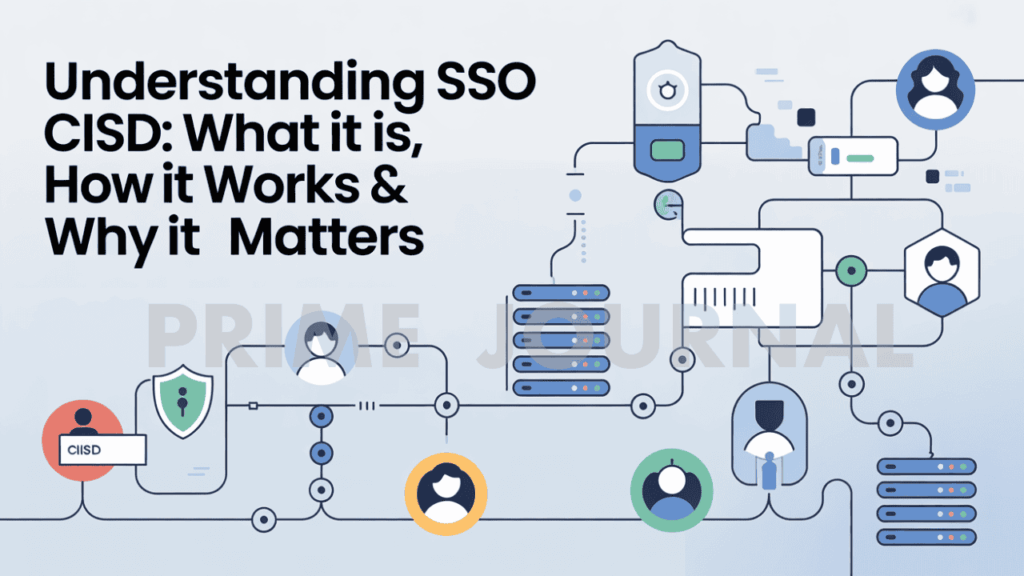
- After logging in via the SSO portal, you’ll arrive at a dashboard tile-style interface listing all the apps your role has access to: for example: Google Drive, Office 365, Canvas, Skyward, etc.
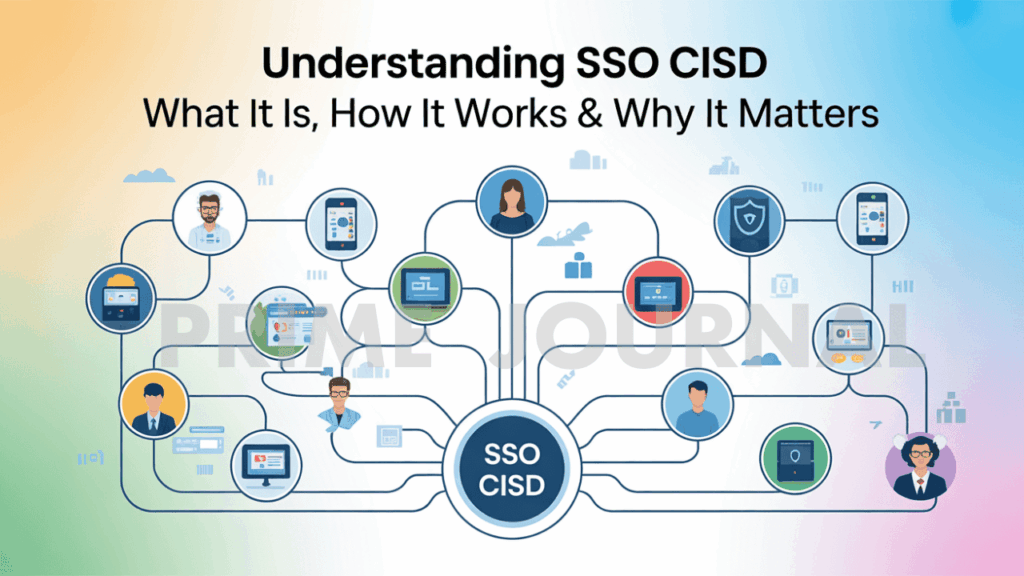
- You click an icon and you’re in—no need to re-enter a password for each app. That’s the “single sign-on” benefit.
- On school-managed devices (Chromebooks, laptops) this can work seamlessly, sometimes logging you in automatically.
Passwords & Security Lifecycle
- Password must meet district criteria (often length & complexity) and is set to expire every 90 days.
- Recovery options should be in place (personal email & mobile phone) so you can reset if you forget.
- When using shared or public devices you should log out after session.
- MFA is strongly recommended especially for staff / admin accounts, due to elevated privileges.
Example User Flow
| Role | Scenario | Benefit |
|---|---|---|
| Student | Logs in, then opens Google Classroom → Drive | One login for all required learning tools |
| Teacher | Logs in, then access grade-book & lesson tools | No juggling of multiple credentials |
| Parent | Logs in, then checks child’s grades/attendance | Simplified access to student info |
| Staff/IT | Logs in to admin portal & apps | Better security, consolidated access control |
Benefits of SSO CISD
For Students
- Less time wasted on forgotten passwords or multiple logins.
- Quicker access to learning-apps, assignments, schedule.
- Consistent experience across devices (home/ school).
- Example: Student logs in, sees favourite apps pinned, starts assignments without delay.
For Teachers & Staff
- Reduced administrative burden (fewer login issues to manage).
- One place to access teaching tools, communication apps, grade-book etc.
- Better security controls (one account to monitor vs many).
- More time for teaching rather than technical issues.
For Parents/Guardians
- Simplified portal to monitor child’s progress, attendance, communications.
- No need to remember multiple parent-portal logins for each child or system.
- Improved engagement because access is easier.
For IT / Administration
- Easier access-control (role-based dashboards: student/teacher/parent).
- Fewer password resets and help-desk tickets.
- Better security posture via MFA, central logging, audit trails.
- Cost savings and improved efficiency.
Other Strategic Benefits
- Supports remote/hybrid learning: access from any device, any location.
- Integrates many 3rd-party educational apps and platforms in one place.
- Aligns with modern cybersecurity best practices (SSO + MFA) — see e.g., how ClassLink emphasises this.
Considerations & Potential Limitations
While SSO CISD offers many advantages, it’s fair to be aware of possible trade-offs.
Dependency on Internet / Device
- You need a stable internet connection and compatible browser/device. If connectivity issues happen, access may be impacted.
- Some guides advise using supported browsers like Chrome or Edge rather than Safari, especially for password-resets.
Single Point of Failure Risks
- Because many apps are accessed via one login, if your account is locked or compromised, access to multiple resources is lost. Strong security is therefore vital.
- Ensure you logout on shared devices, and maintain secure recovery options.
Role-Based Access & Permissions
- Some applications may not appear if your account role (student/teacher/parent) lacks permission. This can cause confusion (“Why can’t I see App X?”).
- Clear communication is needed so users know who to contact for missing app access.
Privacy & Data-Security Concerns
- Because one login controls many resources, the data landscape is wide – appropriate audit, encryption, monitoring are required.
- Users should be educated on safe login habits (not sharing credentials, using personal recovery email/phone).
Customisation / Usability Trade-offs
- Some users find dashboards generic; schools may need to customise the user-experience for each role.
- If many apps are enabled, dashboard may become cluttered; discipline and training help.
How to Use – Best Practices & Tips
- Bookmark the SSO portal login page for quicker access.
- Use a strong password (mix uppercase/lowercase, numbers, symbols) when you change your temporary password.
- Set up both recovery email and phone number so you can recover your account easily.
- Enable and use MFA — the “image method” (select-your-picture) or authenticator app is strongly preferred over SMS.
- On devices you share (lab computers, library terminals) always Sign Out when done.
- Keep your browser up-to-date, enable cookies & JavaScript (most SSO portals require this).
- If an app is missing from your dashboard, check with your teacher/school admin to confirm access rights.
- If you change your personal email or phone, update your recovery options in SSO settings.
- For students: pin your most‐used apps to the top of your dashboard so you start each day faster.
- For parents: login on a weekend or evening to familiarise yourself with the dashboard so you can monitor regularly.
- If you share a device with siblings/others, consider creating separate user-profiles or make sure you logout properly each time.
FAQs
Q1. What happens if I forget my password?
Answer: Use the “Forgot Password” link on the SSO login page. If you’ve set your recovery email/phone, you can reset the password yourself. If not, contact your school campus or district Technology Help Desk. kb.conroeisd.net+1
Q2. Do I need to use a different login for every application?
Answer: No — that’s the benefit of SSO CISD. You login once via the district’s portal and then you can access multiple approved applications without entering separate credentials for each. Hitmagzine
Q3. Can I access it from home or on my smartphone?
Answer: Yes. The platform is designed to work from any device with internet and a supported browser (or via apps). However, some features may depend on device/browser compatibility. Stopie
Q4. What if an app I expect isn’t shown on my dashboard?
Answer: Possible reasons include:
- That role (student/teacher/parent) doesn’t have permission for the app.
- The app hasn’t been added yet by your campus.
- Browser caching/display issue – try refreshing or logging out & in again.
If it persists, contact your school’s IT or helpdesk.
Q5. Is my login secure? What if someone steals my password?
Answer: The district uses standard security measures: strong password policy, password expiry, MFA options, encrypted connections. However you also share responsibility: don’t share your credentials, use recovery options, log out on shared devices, keep your personal recovery email/phone up-to-date.
Q6. How often do I have to change my password?
Answer: According to the district documentation, passwords expire every 90 days and you’ll receive reminder emails. kb.conroeisd.net+1
Q7. Can I use the same password for other services?
Answer: It’s strongly advised not to reuse passwords. Even though SSO reduces the number of passwords you must remember, using unique passwords is a best practice for security.
Q8. What if I get locked out of my account?
Answer: Wait for the automatic lock-out period (often 15-30 minutes) or contact your campus tech support. Don’t keep attempting logins repeatedly (that can extend lock-out duration).
Conclusion
In summary, SSO CISD represents a significant improvement in how students, teachers, staff and parents access digital tools within the Conroe Independent School District. With one login, many apps become accessible—saving time, reducing frustration, and enhancing security. However, it works best when users familiarise themselves with the system, set up recovery options, enable MFA, and maintain secure practices.
If you’re a student or parent in Conroe ISD and you haven’t yet visited your SSO dashboard today, log in now, explore the apps available to you, update your recovery info, and pin your most-used tools. And if you’re a teacher or administrator, review your role-based dashboard, check permissions for the apps your class uses, and encourage colleagues/students to adopt safe login habits.+
By leveraging the power of SSO effectively, you’ll spend less time battling login issues and more time focusing on learning, teaching or supporting education.