



Grok Imagine is xAI’s image and video generator that lets you turn simple text descriptions into high‑quality visuals and short clips without traditional design or editing skills. It lives inside the broader Grok ecosystem and is designed to be fast, playful, and practical for everyday creators, marketers, and brands.
What Is Grok Imagine?
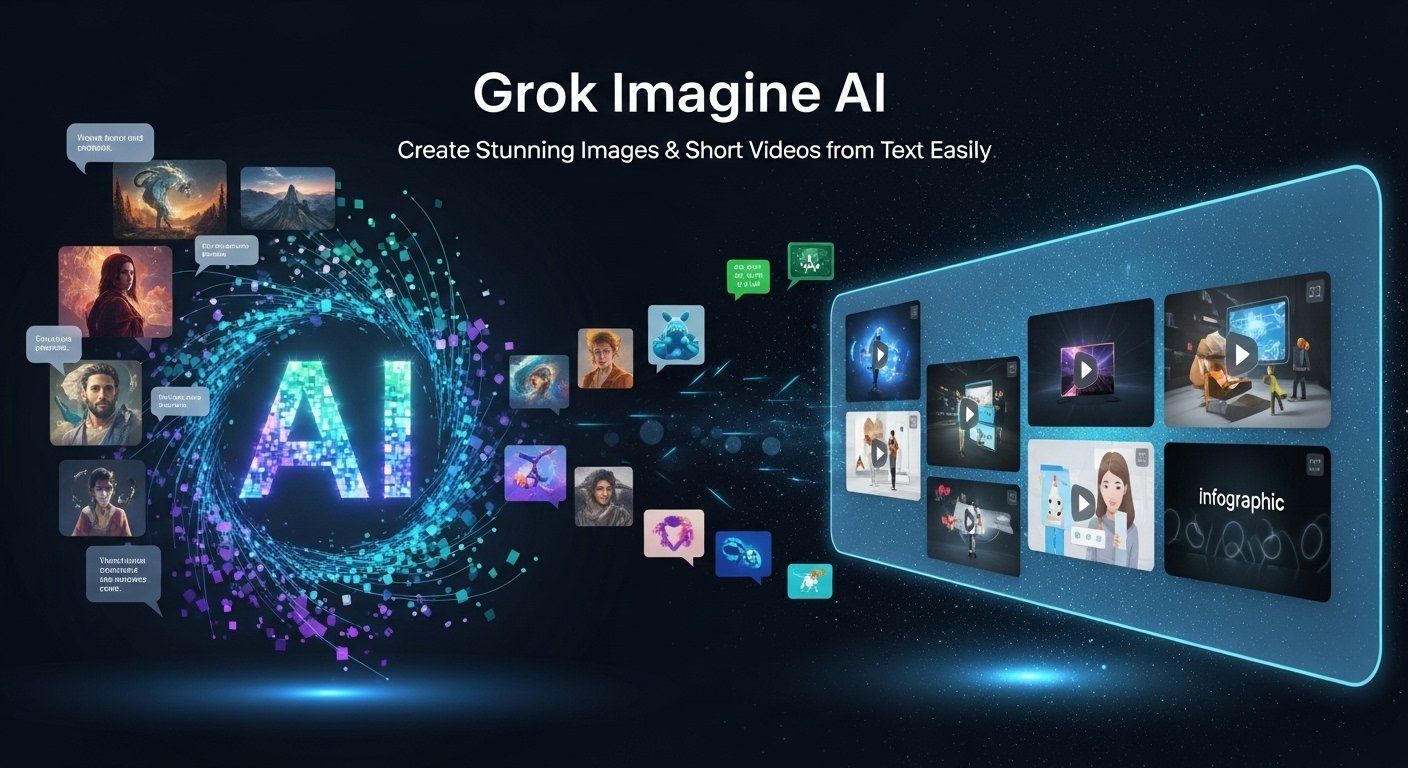
Grok Imagine is a generative AI tool from xAI that creates images and videos from natural language prompts. You describe what you want, a scene, product, character, or concept and Grok Imagine handles composition, lighting, style, and motion for you. It sits alongside the Grok chatbot as a “visual wingman,” giving users a way to go from an idea in text to something visual in just a few steps.
The tool focuses on multimodal generation, meaning it can work with both text and images. You can start from a blank prompt to create a completely new image, or you can take an existing image and at ImagineArt ask Grok Imagine to animate it into a short video. This makes it useful for both zero‑to‑one creation and for enhancing assets you already have.
How Does Grok Imagine Work?
Under the hood, Grok Imagine is powered by a large visual model trained on text–image (and for video, text–image–motion) data. You don’t see the complexity of the model; you only interact with a clean interface where you type what you want. The system converts your prompt into a detailed internal representation and then “renders” it as pixels and frames.
Text to image
- You write a prompt describing a scene or subject.
- The model generates one or more images that match your description.
- You can refine your prompt and regenerate until you’re happy.
Image to video
- You either upload or select an image, or describe the scene you want to see in motion.
- The model creates a short clip where the camera moves, elements animate, or the environment evolves.
- Audio may be added automatically to support the mood of the clip.
You don’t need to understand the underlying architecture or training process to use it effectively; what matters is learning how to describe subjects, styles, and motion clearly.
Image Generation
For static images, Grok Imagine can create:
- Portraits and characters (realistic, stylized, cartoon, anime, etc.).
- Product shots and hero renders for websites and ads.
- Environments like cityscapes, nature scenes, and interiors.
- Abstract or conceptual art for backgrounds, posters, or moodboards.
The main control you have is your prompt. By specifying the subject, setting, style, lighting, and mood, you steer the output toward what you need. For example:
- “Photorealistic portrait of a woman in a modern office, soft natural light, shallow depth of field.”
- “Flat vector illustration of a person working at a laptop with floating charts around them, pastel colors.”
Short Video and Animation
For motion, Grok Imagine focuses on short clips that are ideal for social media and B‑roll. Common uses include:
- Small product demos (spin, zoom‑in, reveal).
- Cinematic scenes for TikTok, Reels, or YouTube Shorts.
- Animated story moments or mood shots.
You’ll usually be able to influence attributes like:
- Duration (a few seconds).
- Motion type (camera pan, zoom, orbit, simple action).
- Style (cinematic, cartoon, surreal, minimalist).
Where and How Do You Access Grok Imagine?
Grok Imagine is tied to the broader Grok / xAI environment, typically accessible through the same interface where you use the Grok assistant. Depending on how xAI rolls it out, you might:
- Open a dedicated “Imagine” or “Image/Video” section.
- Access visual generation as a mode or tab next to chat.
- Trigger it via a prompt like “Generate an image of…” or “Create a video of…”
Access may depend on your subscription tier and region. In many AI ecosystems, advanced multimodal features launch first for paying users or specific markets and then expand over time. If you’re not seeing Grok Imagine yet, it’s usually worth checking your plan, app version, and region availability, and watching for official updates from xAI.
How to Use Grok Imagine AI
Pick a Simple Goal
Instead of starting with something huge, like “a full animated trailer,” pick a small, concrete goal:
- One YouTube thumbnail idea.
- One TikTok/Reels background clip.
- One hero image for a landing page.
- One personal avatar or character portrait.
A clear goal helps you write better prompts and judge the results.
Write a Clear Prompt
Use a simple framework:
- Subject: who or what is the focus?
- Style: realistic, 3D, cartoon, anime, flat, painterly, etc.
- Environment: where is it happening?
- Mood & lighting: cinematic, cozy, dark, bright, futuristic, etc.
- Camera: close‑up, wide shot, top‑down, portrait, landscape.
Example:
- “Close‑up portrait of a content creator in a neon‑lit studio, cinematic, vibrant colors, smiling confidently, shallow depth of field.”
- “Vertical video of a runner sprinting through a futuristic city at night, dynamic camera movement, glowing billboards, high energy.”
Generate and Refine
Once you generate:
- Check the composition: Is the subject clear? Is there space for text if you need it?
- Check the style: Does it match your brand or channel?
- Check the mood: Does the lighting and color scheme feel right?
Then refine:
- Add missing details: “holding a smartphone,” “sunset lighting,” “minimal background.”
- Remove unwanted complexity: “simple background,” “no text,” “no extra people.”
- Try style tweaks: “flat vector style,” “cinematic,” “pastel colors.”
Save or download the outputs you like so you can reuse them in your thumbnail editor, design tool, or video editor.
Used thoughtfully, Grok Imagine can serve as a fast, flexible visual studio that fits neatly into your existing content and marketing workflows even if you’re starting today as a complete beginner.
What are Grok Imagine Alternative:
Good Grok Imagine alternatives include Kling Ai Video Generator for highly stylized, detailed images and concept art, Runway Gen‑2 for text‑to‑video plus strong in‑app editing, and newer video‑focused models like Sora or Veo‑style tools for more realistic, longer clips. You can also look at all‑in‑one creator suites such as HitPaw Edimakor, which combine AI image and video generation with basic timeline editing, making them practical if you want to stay inside a single environment from idea to finished content.